Getting Started with ZimaOS and Twingate
This guide explains how to set up Twingate to securely access your ZimaOS environment using the open source ZimaOS App Store. By integrating Twingate with ZimaOS, you can ensure that your private resources remain protected while enabling seamless remote access.
Prerequisites
Before you begin, ensure you have the following:
- A running instance of ZimaOS.
- A Twingate account with access to the Admin Console.
Installation Steps
1. Generate Connector Access and Refresh Tokens
Start by generating new Access and Refresh tokens for a Connector. Follow these steps:
- Log in to the Twingate Admin Console.
- Navigate to Remote Networks.
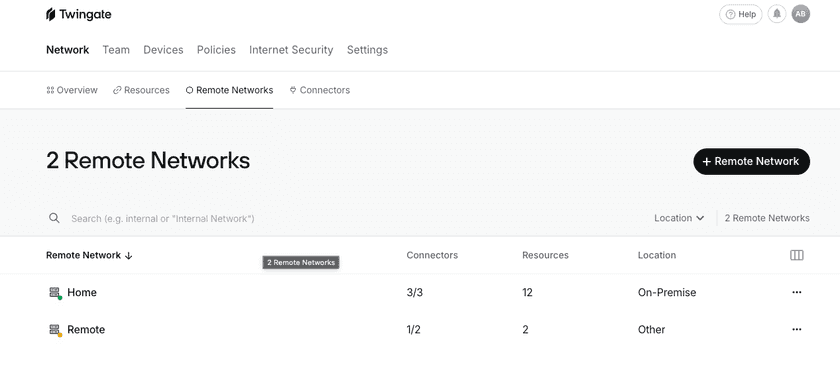
Remote Networks Screen - Select the Remote Network you want to add a Connector to.
- Add a Connector or select one that hasn’t been deployed yet.
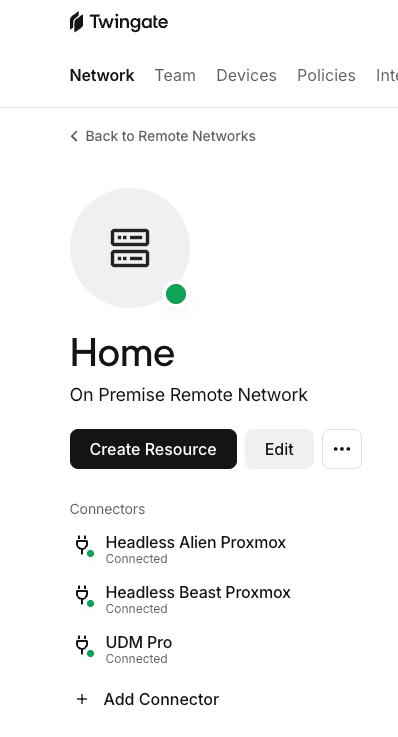
Selected Network Screen - Select Homelab
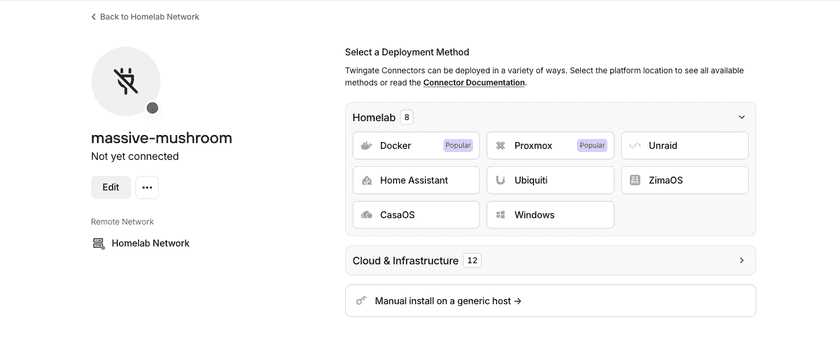
Selected Connector - Select the ZimaOS option.
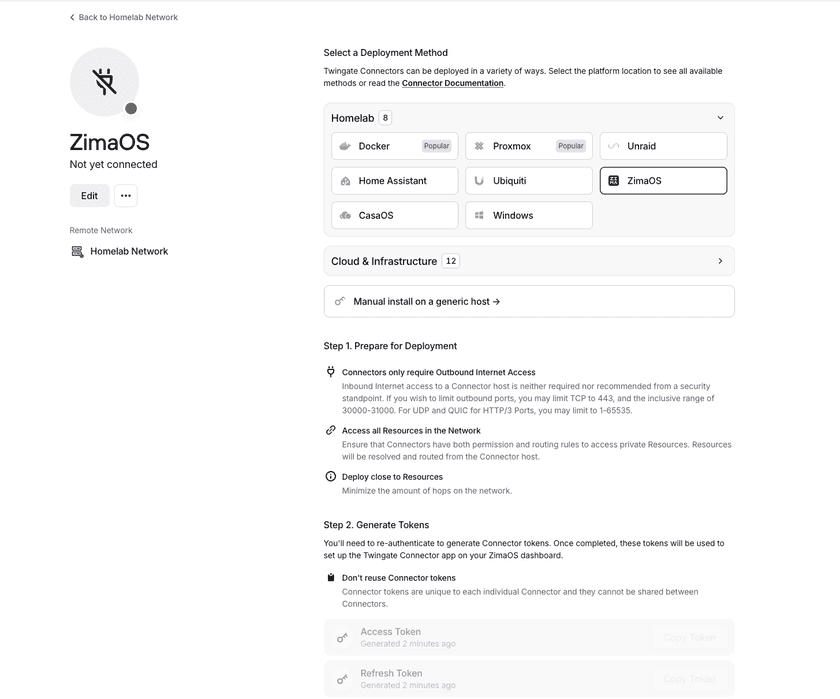
All Connector Options - Scroll down to Step 2 and click Generate Tokens.
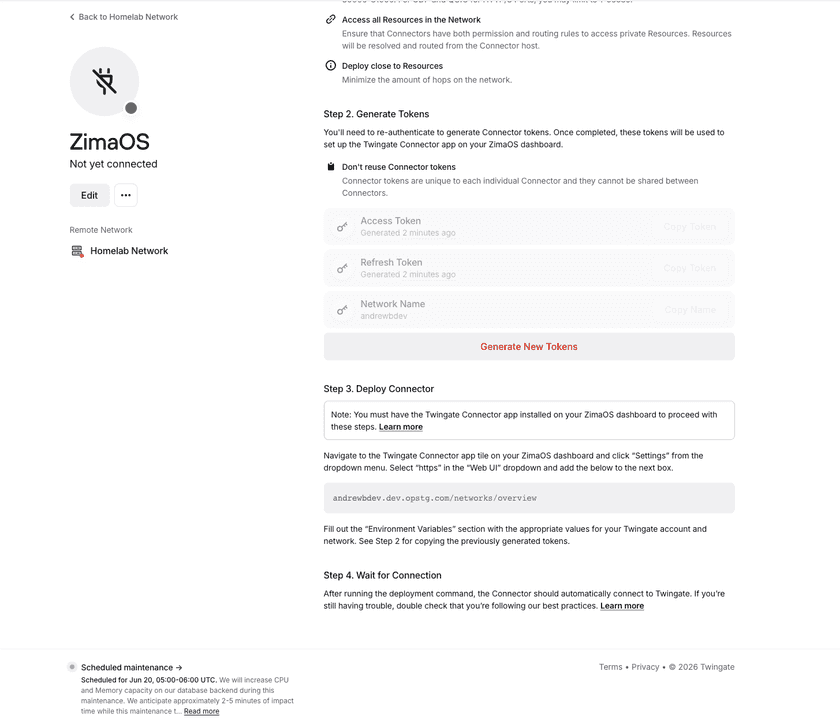
Step 2 of Connector Setup - Authenticate when prompted to complete token generation.
- Copy the Access Token and Refresh Token displayed. You will use them in the next step.


Important
Make sure you do not reuse token sets. It is important that each Connector has its own unique token set.
2. Deploy a Twingate Connector using the ZimaOS App Store app
- Open the ZimaOS web UI.
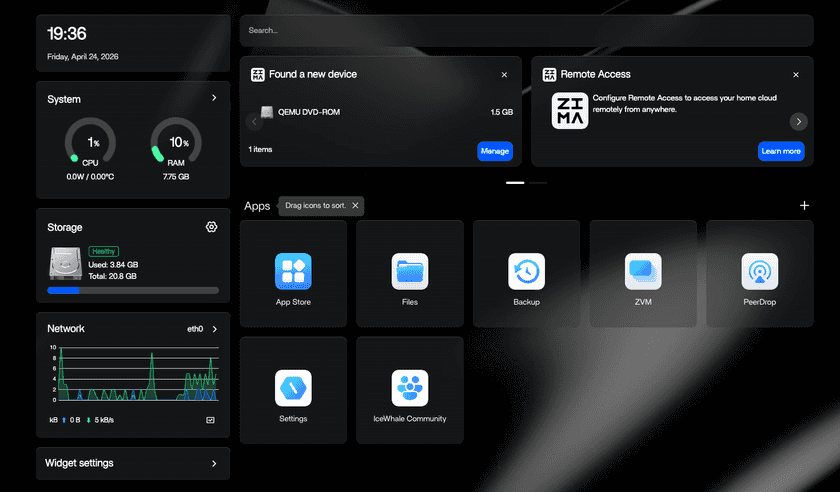
ZimaOS Web UI - Navigate to the App Store.
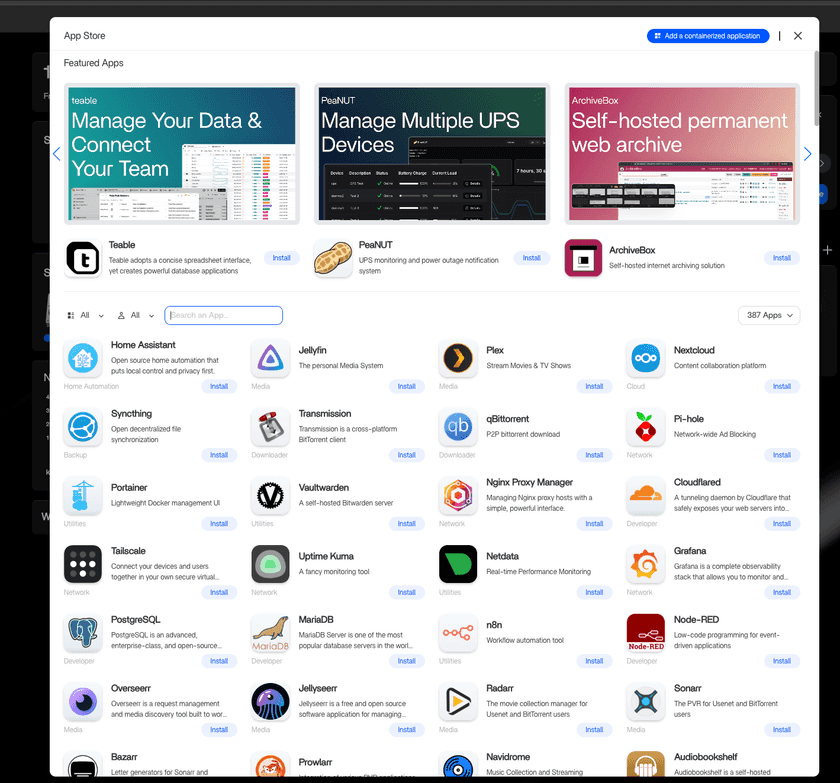
ZimaOS App Store - Search for “Twingate”.
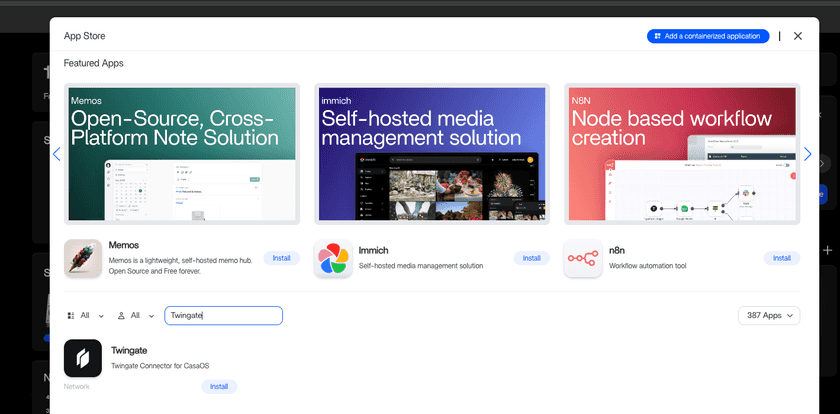
Twingate Search Results - Click on the Twingate Connector app.
- Click the “Install” button. This will install the Connector app but we now need to configure it before it connects successfully for the first time.
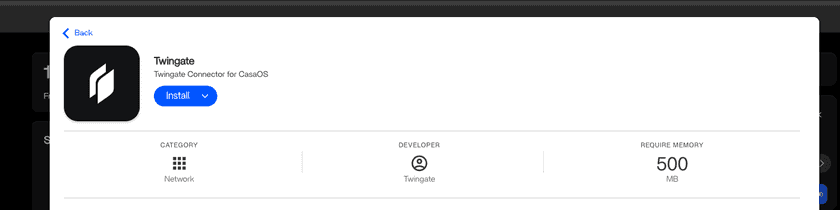
Twingate App - Hover over the new Twingate Connector app tile on the ZimaOS dashboard. This will expose an ellipsis (…) in the top right corner. Click the ellipsis and select “Settings” from the dropdown menu.
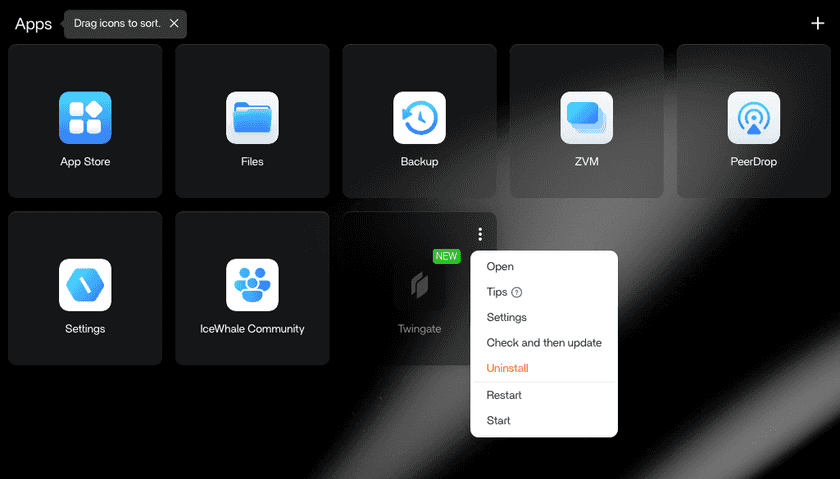
Settings Dropdown - Select “https” in the “Web UI” dropdown and add
{network_name}.twingate.com/networks/overviewto the next box, replacing{network_name}with the name of your Twingate Network. This will allow you to easily access the Twingate Admin Console by clicking on the Twingate Connector app on the ZimaOS dashboard.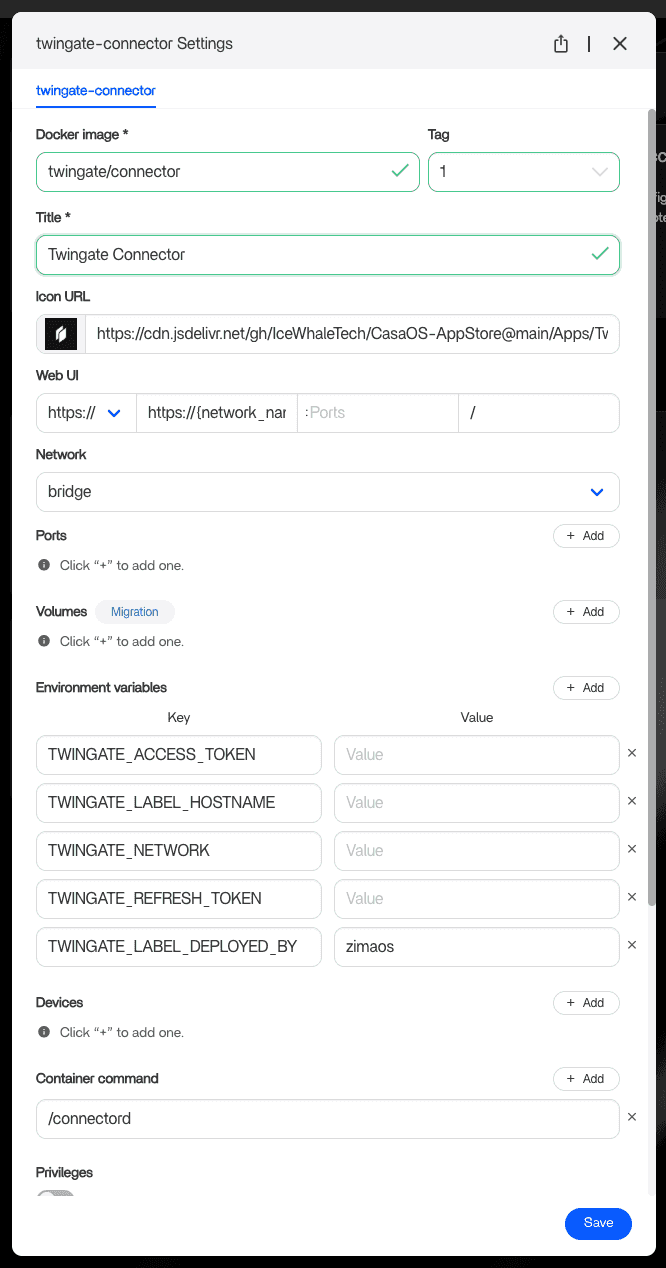
Settings Dropdown - Fill out the “Environment Variables” section with the appropriate values for your Twingate account and network. This includes the tokens you copied in step 1.8. Your Twingate Network name is the subdomain of your Twingate network URL. For example, if your Twingate network URL is
https://example.twingate.com, then your Twingate Network name isexample. - Click the “Save” button. This will update the Twingate Connector configuration with your Twingate account information and start up the container.
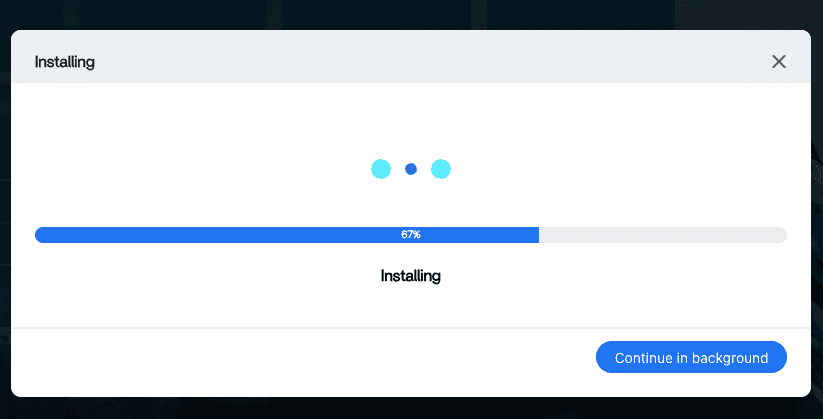
Installing Popup 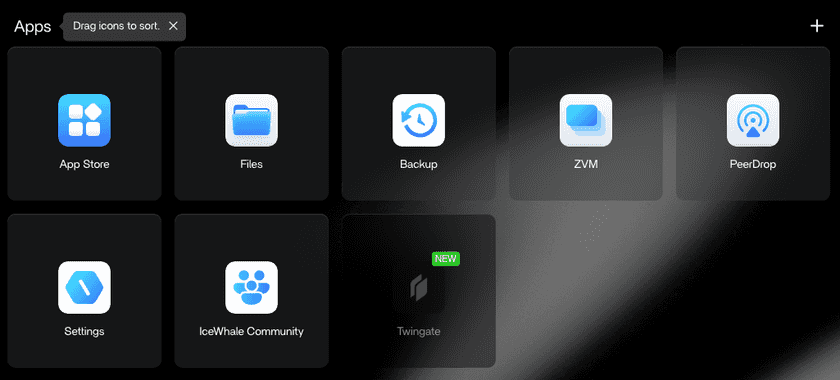
Post Install Dashboard


3. Verify Installation
- Navigate back to the Admin Console.
- Navigate to Remote Networks.
- Select the Remote Network you added your new Connector to.
- Select the new Connector.
- Verify that the Controller and Relay statuses are
Connected.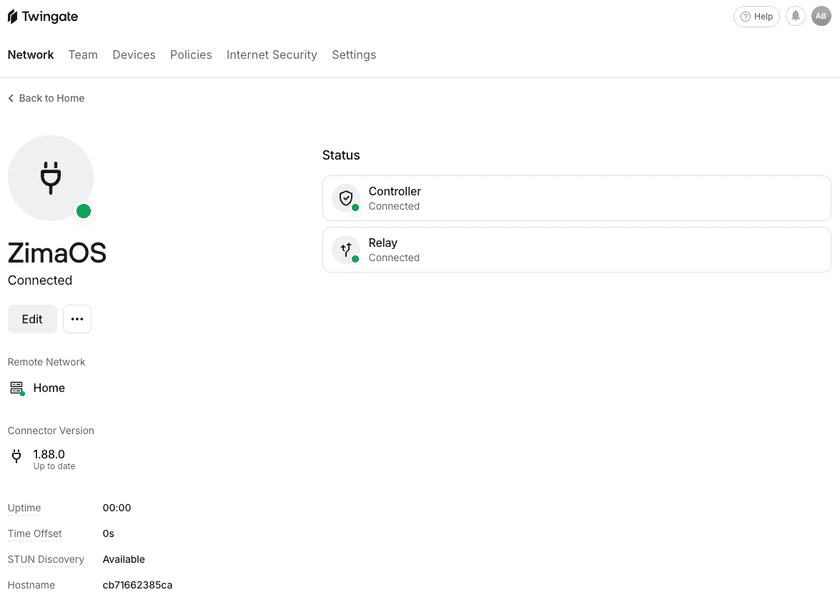
Fully Setup Connector

4. Access Your ZimaOS Dashboard Remotely
- Navigate to the Twingate Admin Console.
- Click on Resources in the top sub menu.
- Click the ”+ Resource” button in the top right corner. A resource creation modal will pop up.
- Select the remote network you just installed your Connector on.
- Give the resource a name (e.g., “ZimaOS”).
- Add the dashboard’s private IP address. This will be the same address used to access the dashboard locally. It is typically in the format
192.168.x.x. - Assign access to one of your groups by selecting one in the list and clicking “Grant Access”.
- Now anyone in that selected group will have access to the ZimaOS dashboard when connected to Twingate. To access the dashboard, simply connect to Twingate and navigate to the dashboard’s IP address. You should see the ZimaOS dashboard load as if you were accessing it locally!
Troubleshooting
Common Issues
- Token Errors: Ensure the Access and Refresh tokens are correctly entered.
- Connectivity Problems: Verify that you can access the ZimaOS web interface locally and the Twingate Connector app is running.
If issues persist, take a look at the troubleshooting docs
Feedback
If you run into any issues or have a suggestion, reach out on our subreddit.
Next Steps
Once Twingate is configured, you can explore additional resources to enhance your setup:
- Setting Up Additional Resources: Learn how to configure Twingate Resources to gain access to private applications and services.
Additional Resources
- CasaOS Setup Guide: Learn how to integrate Twingate with CasaOS.
- Home Assistant Setup Guide: Learn how to integrate Twingate with Home Assistant.
- Unraid Helper Script Guide: Learn how to integrate Twingate with Unraid with the official Community App.
Last updated