Getting Started with DigitalOcean and Twingate
Secure access to your DigitalOcean environment from anywhere in the world.
Overview
This guide explains how to set up Twingate to securely access your DigitalOcean environment using a cloud-init script and doctl. By integrating Twingate with DigitalOcean, you can ensure that your private resources remain protected while enabling seamless remote access.
Prerequisites
Before you begin, ensure you have the following:
- A DigitalOcean account with API access.
- The
doctlCLI tool installed and configured with your DigitalOcean credentials. - A Twingate account with access to the Admin Console.
- Basic familiarity with DigitalOcean Droplets and
cloud-init.
Installation Steps
1. Generate Connector Access and Refresh Tokens
Start by generating new Access and Refresh tokens for a Connector. Follow these steps:
- Log in to the Twingate Admin Console.
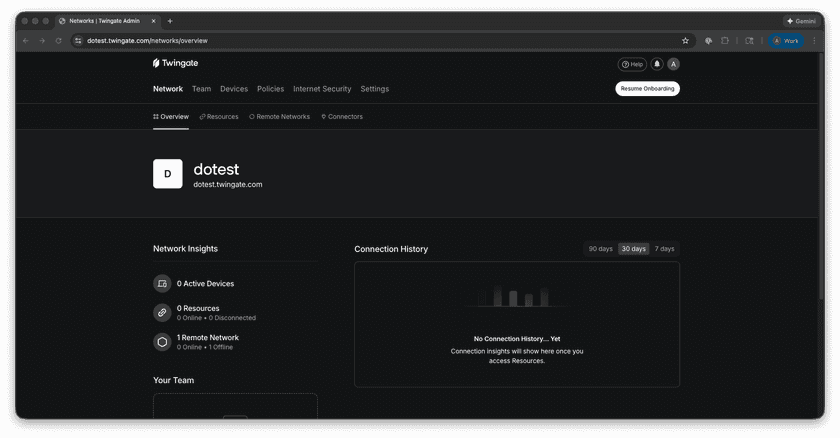
Twingate Admin Console - Navigate to Remote Networks.
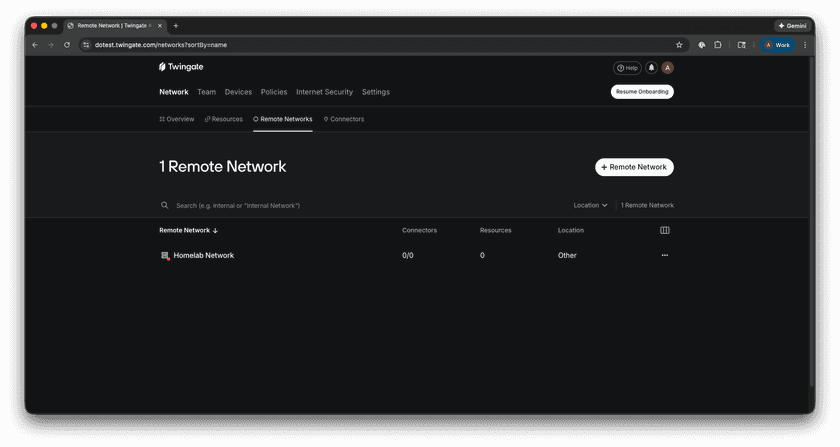
Remote Networks Screen - Select the Remote Network you want to add a Connector to.
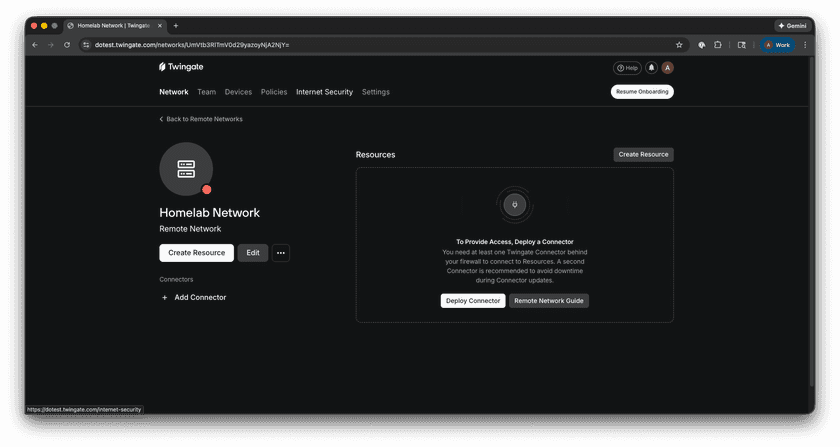
Selected Network Screen - Add a Connector or select one that hasn’t been deployed yet.
- Select the See More option.
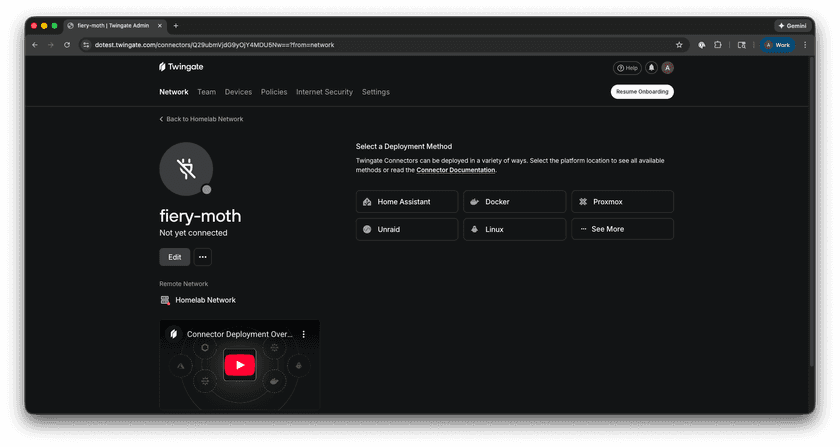
Selected Connector - Select the DigitalOcean option.
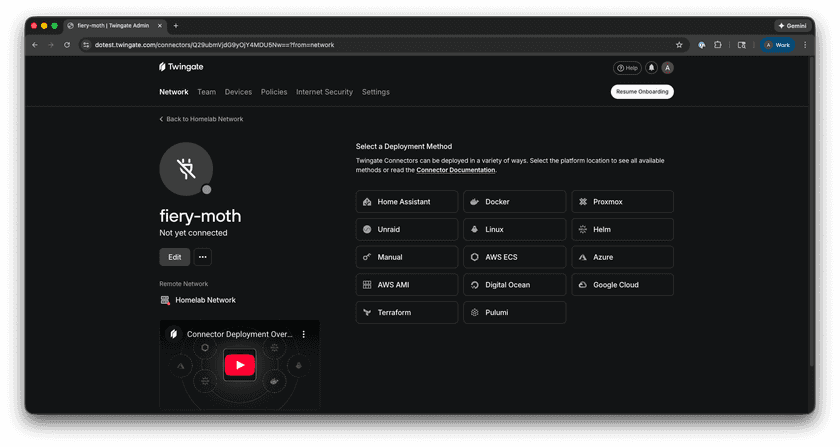
All Connector Options - Scroll down to Step 2 and click Generate Tokens.
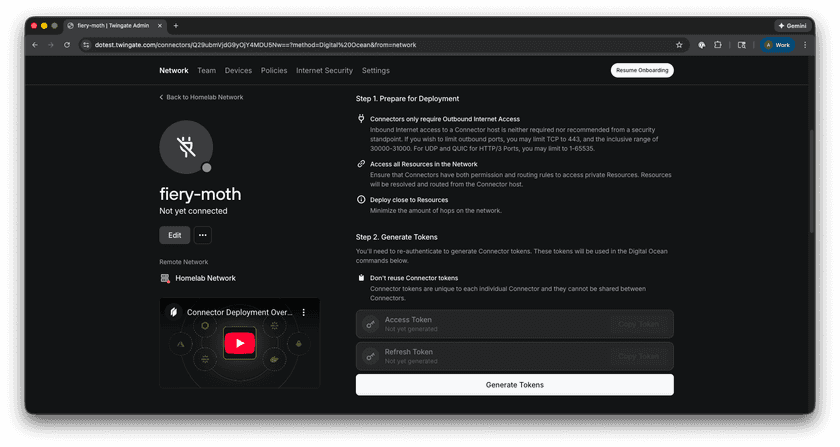
Step 2 of Connector Setup - Authenticate when prompted to complete token generation.
- Scroll down to Step 4 to copy the installation command.
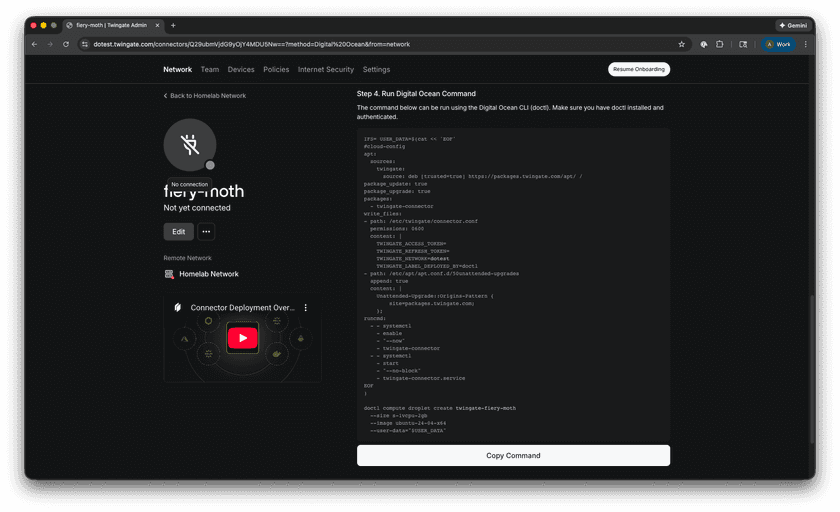
Step 4 of Connector Setup


Important
Make sure you do not reuse token sets. It is important that each Connector has its own unique token set.
2. Deploy the Connector using doctl
Paste the command from Step 1.8 into your terminal of choice.
Verify that the doctl command finishes successfully. This will create a new Droplet with the Twingate Connector installed and configured using cloud-init.

3. Verify Installation In DigitalOcean and the Twingate Admin Console
DigitalOcean
- Log in to your DigitalOcean Control Panel.
- Navigate to the Droplets section.
- Locate the Droplet created for the Twingate Connector.
- Verify that the Droplet is running.

Step 2 of Connector Setup

Twingate Admin Console
- Navigate back to the Admin Console.
- Navigate to Remote Networks.
- Select the Remote Network you added your new Connector to.
- Select the new Connector.
- Verify that the Controller and Relay statuses are
connected.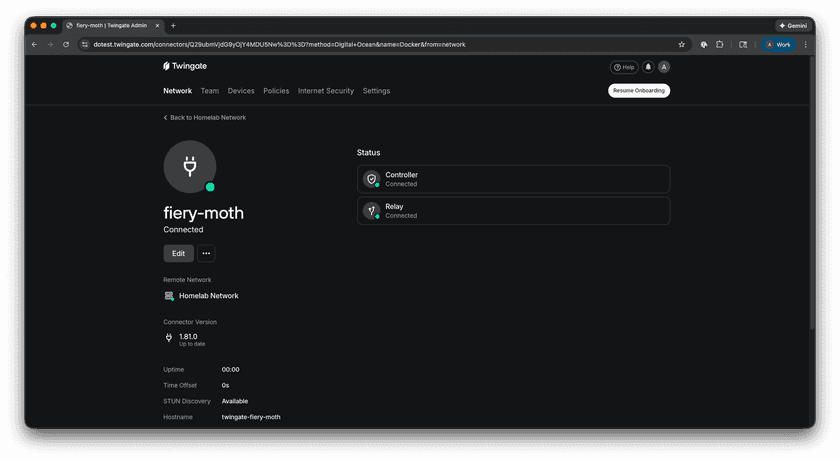
Step 2 of Connector Setup

Troubleshooting
Common Issues
- Token Errors: Ensure the Access and Refresh tokens are correctly entered in the
cloud-initscript. - Copy / Paste Errors: Depending on how your terminal interprets white spacing, copying to a separate script may be necessary.
- Connectivity Problems: Verify that the Droplet was created successfully using
doctl compute droplet listand check that the Twingate Connector service is running. - doctl Not Found: Ensure you have installed and authenticated the
doctlCLI tool. Visit the DigitalOcean documentation for installation instructions.
If issues persist, take a look at the troubleshooting docs
Next Steps
Once Twingate is configured, you can explore additional resources to enhance your setup:
- Connector Management: Learn how to manage and monitor your Twingate Connectors.
- Setting Up Resources: Learn how to configure Twingate Resources to gain access to private applications and services.
Last updated